Interiors · Example job
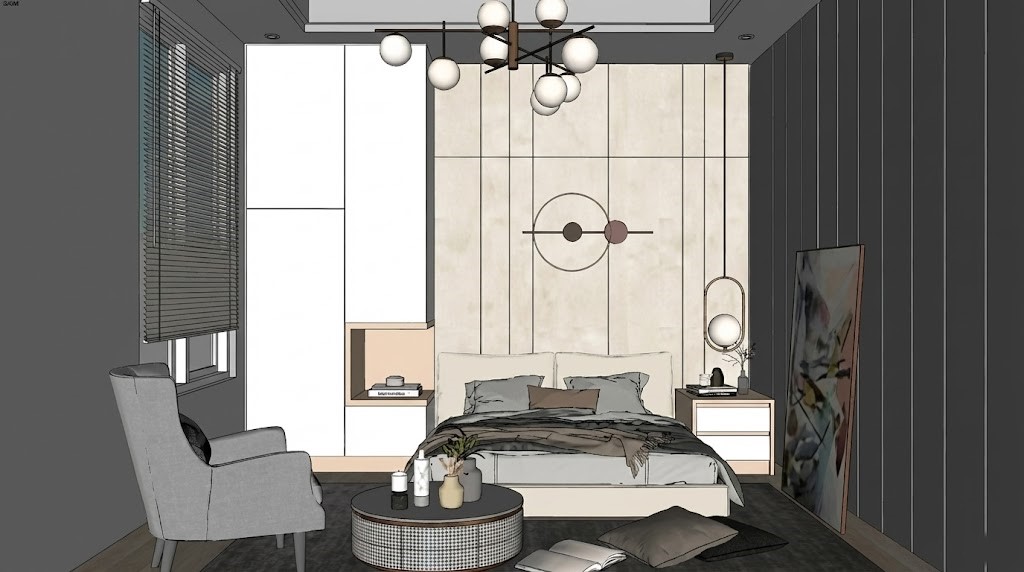
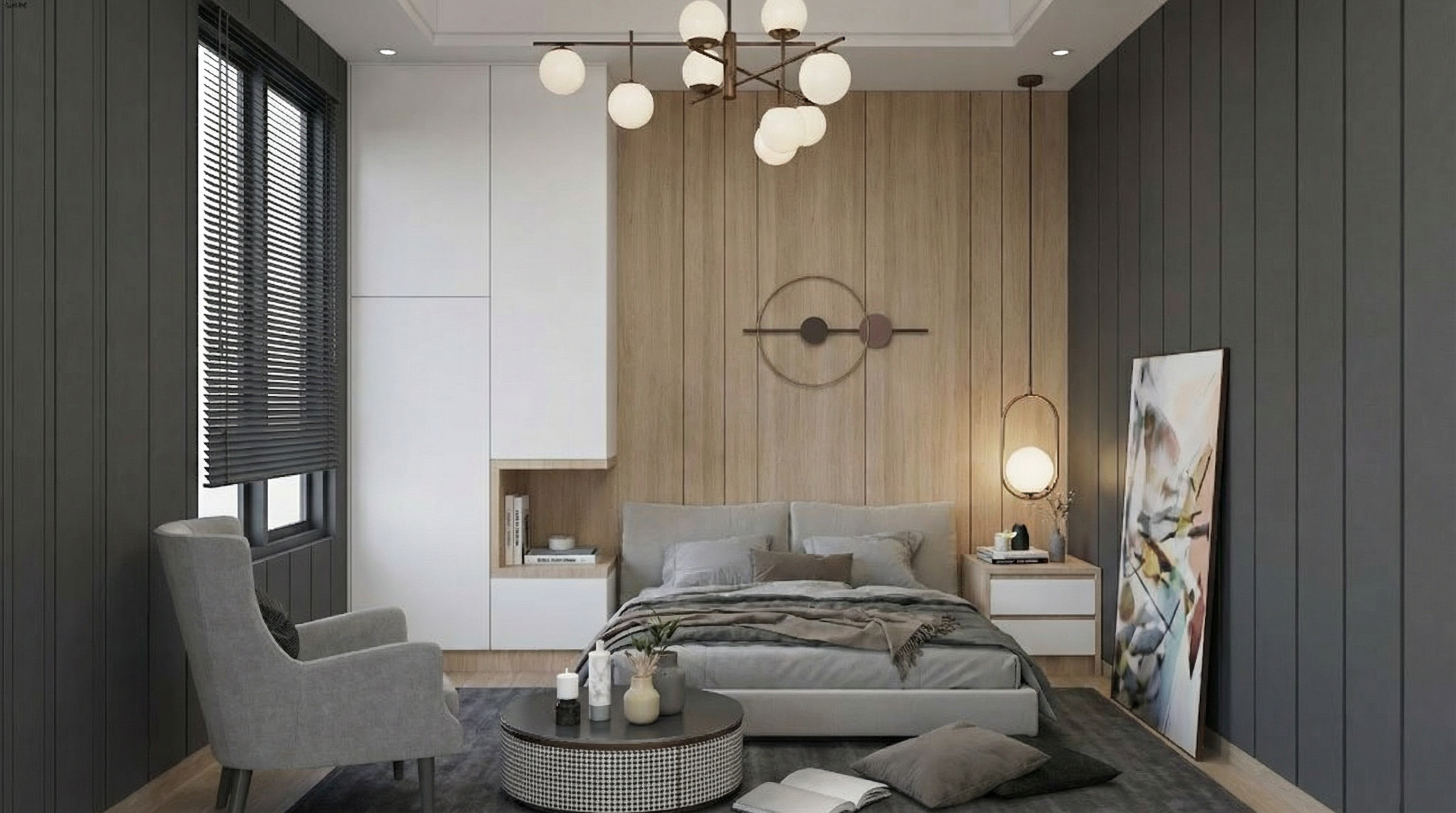
Bedroom interior from a floor plan
Furnish and light a bedroom view from a plan sketch—then refine selected areas in Studio.
How do you get a bedroom interior from a plan in Drafto? Upload the bedroom plan or sketch, describe style and lighting in chat, and generate a photorealistic interior. Use Studio to select furniture or finish zones and chat only about those regions.
Bedroom plan / sketch → Photorealistic interior
Drag to compare source and result
Showcase pair from the Drafto examples gallery. The prompt below is illustrative for this workflow—not a recorded production prompt for this exact image.
Timing: Most jobs finish in about 30 seconds depending on resolution and queue load. Higher resolutions take longer and use more credits.
Example prompt to try
Illustrative copy-paste starter. Adapt it to your upload. Not claimed as the recorded prompt for the gallery pair above.
Render this bedroom plan as a photorealistic interior. Keep the bed position, windows, and closet layout. Soft natural daylight, calm modern finishes, listing-ready photography look.Sign in and paste into chat
Steps
01
Upload the bedroom plan or sketch
Room boundaries, windows, and built-ins should be readable in the upload.
02
Name style and lighting in chat
Describe furniture style, finishes, and time of day. Explicitly ask to keep layout and openings.
03
Iterate with Studio selection
Mark bedding, flooring, or a wall zone and describe only that change so the rest stays intact.
Aim to keep
- Bed and furniture layout intent
- Window positions
- Room proportions
Typically change
- Finishes and textiles
- Lighting mood
- Decor density
Questions
Yes. Generate one approved base render, then create style variants from chat or Studio while keeping the same source plan in the project.
Who uses this job
Related jobs
Architecture
Floor plan to photorealistic 3D
Clear 2D plan → coherent spatial 3D view for decks and reviews.
Studio & trust
Studio: select an area, then chat
Lasso/marquee a region → chat-only rewrite of that selection.
Real estate
Property marketing visual from a reference
Property reference → campaign-ready marketing visual.
Try it on your own upload
Start in chat, open Studio to select areas, and keep every version in your project gallery.