Studio & trust · Example job
Compare against the original upload
Trust check for listings and client boards: compare the generated render to the source you uploaded.
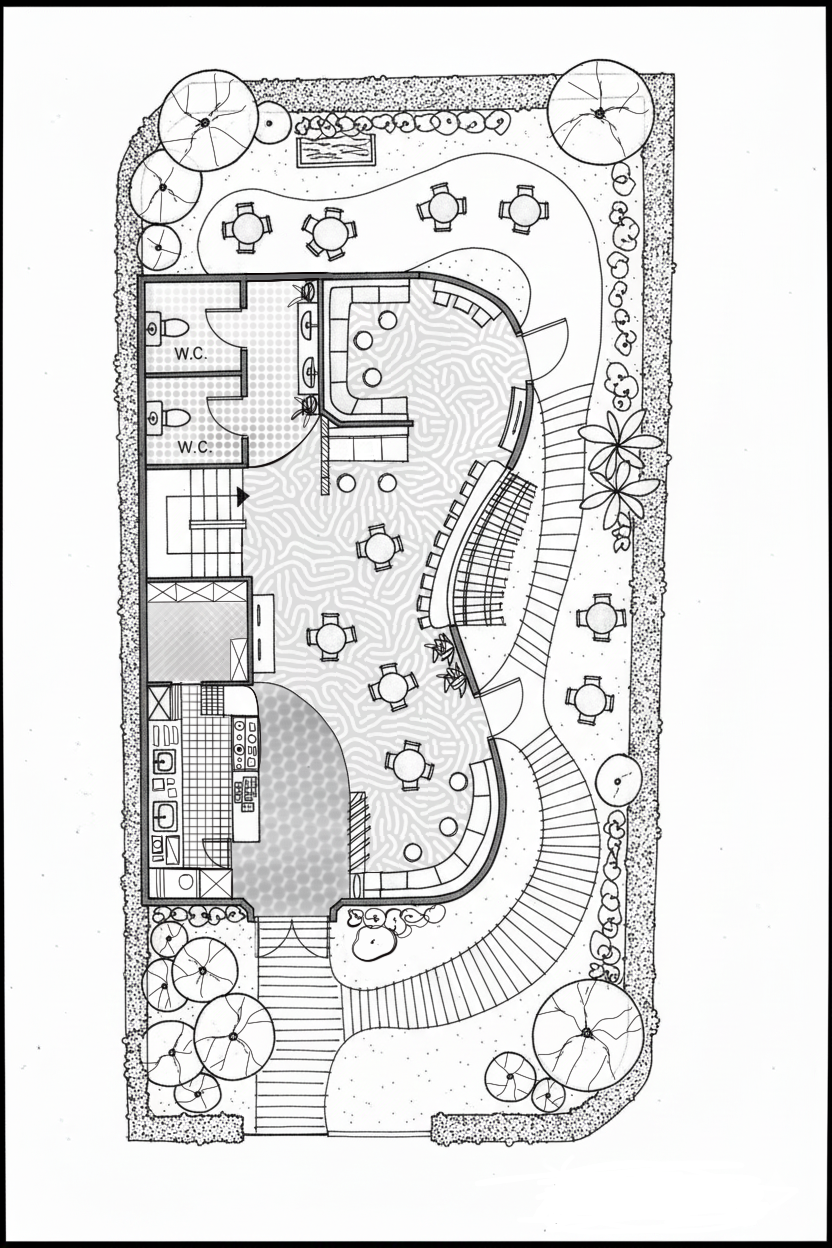
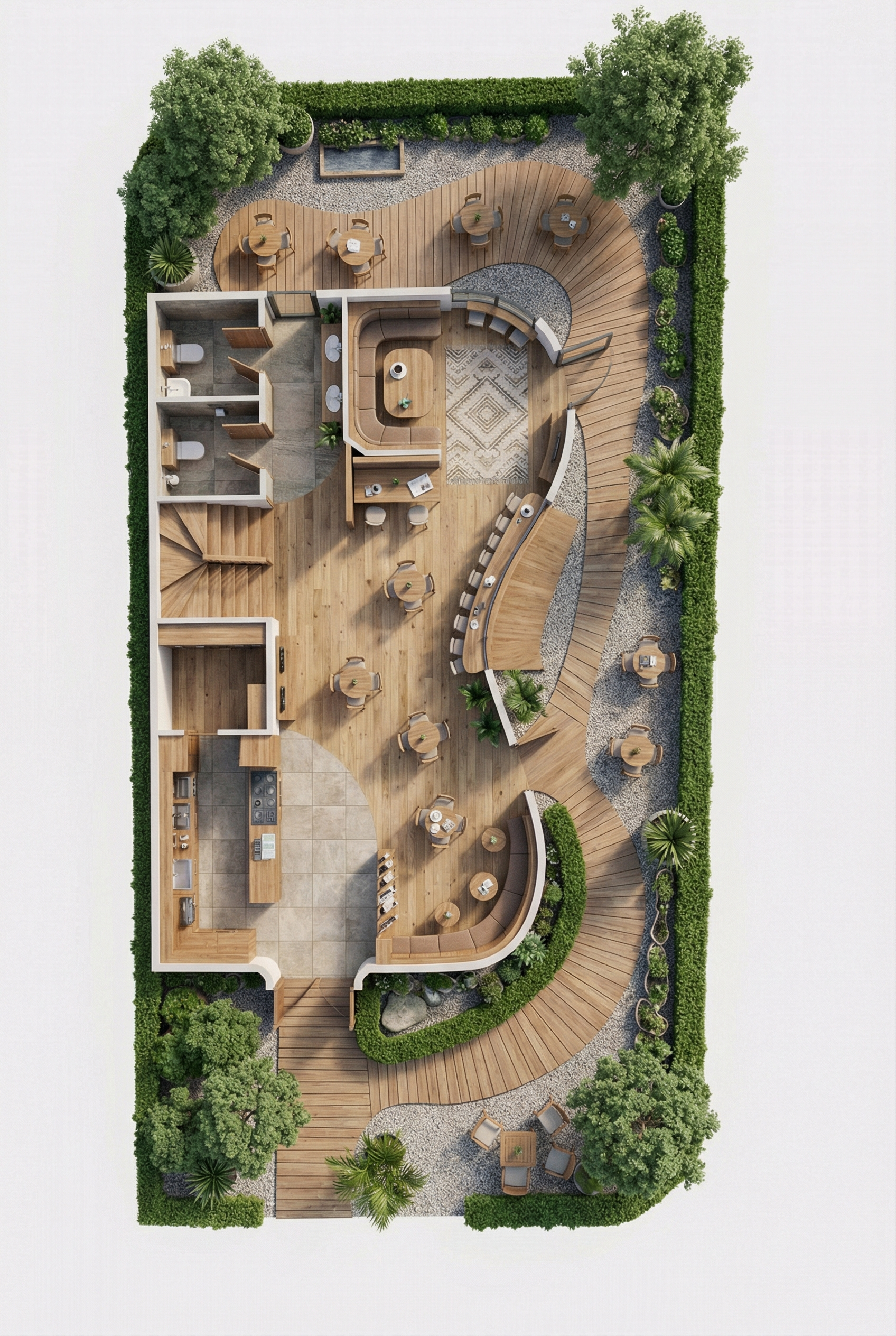
What is Compare in Drafto? Compare lets you drag a before/after slider between the original upload and the current render so teams can validate layout fidelity before publishing.
Original upload → Current render
Drag to compare source and result
Same examples-gallery floor-plan pair used to demonstrate the Compare interaction on marketing pages.
Timing: Most jobs finish in about 30 seconds depending on resolution and queue load. Higher resolutions take longer and use more credits.
Example prompt to try
Illustrative copy-paste starter. Adapt it to your upload. Not claimed as the recorded prompt for the gallery pair above.
Regenerate with stricter layout fidelity: keep every wall, opening, and room proportion from the uploaded plan. Only improve materials and lighting.Sign in and paste into chat
Steps
01
Generate from your source upload
Keep the original plan or drawing locked as the project source.
02
Open Compare on the result
Slide between the original upload and the current render to spot layout drift.
03
Fix drift with chat or Studio
If something moved, ask chat to preserve layout—or mark the problem region in Studio and correct it.
Aim to keep
- Source upload as ground truth
- Ability to validate before publish
Typically change
- Presentation quality of the render
- Targeted corrections after review
Questions
The original image you uploaded for the job versus the current render in that project flow—not unrelated AI variations.
Who uses this job
Related jobs
Architecture
Floor plan to photorealistic 3D
Clear 2D plan → coherent spatial 3D view for decks and reviews.
Studio & trust
Studio: select an area, then chat
Lasso/marquee a region → chat-only rewrite of that selection.
Real estate
Property marketing visual from a reference
Property reference → campaign-ready marketing visual.
Try it on your own upload
Start in chat, open Studio to select areas, and keep every version in your project gallery.